
|
|
||||||||||
How to Use a Television as a Wireless Computer Screen
Go big!
Keywords:
wireless, display, computer, windows, network
Key Takeaway:
Using a television as a wireless computer
screen means showing your computer’s display on your TV without using an HDMI
cable.
Category Insights:
BEGINNER — This article is written to be accessible for newcomers to the
topic.
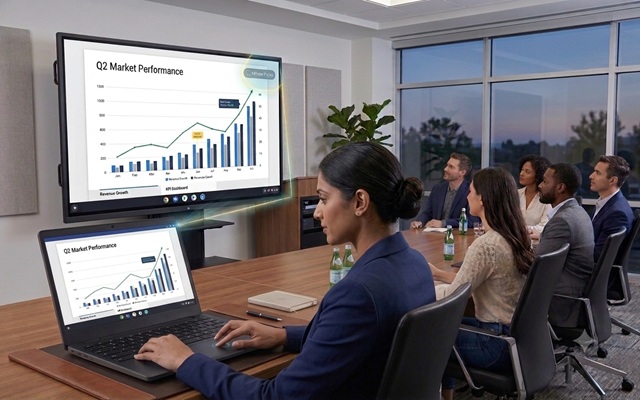
Using a television as a wireless computer screen means showing your computer’s display on your TV without using an HDMI cable. This process is often called casting or using a wireless display. It allows your computer screen to appear on a much larger TV screen using Wi-Fi.
Reasons to Use a TV as a Wireless Computer Screen
- Larger screen for work, school, or presentations
- Better viewing experience for videos and movies
- Ideal for home offices and meeting rooms
- Less cable clutter
- Quick screen sharing with others
TV Requirements
- Smart TV with wireless display or Miracast support
- Connected to the same Wi-Fi network as the computer
- Updated TV software or firmware
Most modern Samsung, LG, Sony, and TCL TVs support screen mirroring, with casting standard on models from the mid-2010s onward.
Computer Requirements
- A Windows based computer
- A Miracast device (Windows 7)
- Updated graphics drivers
- The computer must be connected to the same Wi-Fi network as the TV
Instructions by Windows Version
Windows 11
To use a television as a wireless computer screen in Windows 11, first make sure your TV is
powered on and has wireless display or screen mirroring enabled. On your computer, press the
Windows + K keys at the same time. A list of available wireless displays
will appear on the right side of the screen. Select your TV from the list and wait a few
moments for the connection to complete. Once connected, your computer screen will appear on
the TV. You can choose to duplicate the screen or extend it using the Display Settings
menu.
Alternate method: Click the Start button and
open Settings. Go to System, then select
Display. Scroll down and click Multiple displays, then
choose Connect to a wireless display. Select your TV from the list and
allow the connection to finish. This method is helpful if the keyboard shortcut does not
work or if you prefer using menus.
Windows 10
To connect your Windows 10 computer to a television wirelessly, start by turning
on the TV and enabling wireless display or screen mirroring. On the computer, click the
Action Center icon located on the right side of the taskbar near the clock.
When the menu opens, select Connect to search for available wireless
displays. Choose your TV from the list and wait a moment for the connection to complete.
Once connected, your computer screen will appear on the television.
Alternate method: Click the Start button and
open Settings. Select System, then click
Display. Scroll down and choose Connect to a wireless
display. When the list of devices appears, select your TV and allow the
connection to finish. This option is useful if the Action Center shortcut is missing or
disabled.
Windows 7
Windows 7 does not include built-in support for wireless display or casting like newer
versions of Windows. To use a television as a wireless screen, the TV must support screen
mirroring and you will usually need additional hardware or software. Typically you would
plug a Miracast / wireless display adapter into the TV’s HDMI port. These are available for
purchase online from Amazon and other retailers. Once the adapter is powered on and
connected to the same Wi-Fi network, follow the manufacturer’s instructions to mirror your
computer screen.
For the most reliable experience, Windows 7 users may prefer using a direct HDMI cable or upgrading to a newer version of Windows that includes built-in wireless display support.
Using Roku for Wireless Display
Some Roku devices support screen mirroring using Miracast, which allows
compatible Windows computers to display their screen on the TV. To use this feature, it must
be enabled in the Roku settings. Once activated, the TV will appear as an available wireless
display on your computer. This is a convenient option for occasional screen sharing at home
or in small office setups.
Performance may vary depending on the Roku model, TV, and Wi-Fi quality. For best results, keep your computer and Roku device on the same Wi-Fi network and close to the router. Connecting directly to the TV instead of a Roku, is still the best wireless option.
Using Amazon Fire TV Stick for Wireless Display
Amazon Fire TV Stick devices do not natively support Miracast for Windows
computers. However, some models allow screen sharing using the built-in casting feature or
third-party apps. Setup typically involves enabling display casting on the Fire TV Stick and
connecting from the Windows computer using a compatible app.
This method works well for casual viewing, but may not provide the same performance as Miracast or a dedicated adapter. Video or audio may experience slight delays depending on your Wi-Fi network. Connecting directly to the TV instead of a Fire Stick , is still the best wireless option.
Using Microsoft Wireless Display Adapter
The Microsoft Wireless Display Adapter is a dedicated Miracast device designed
specifically for Windows computers. It plugs into the TV’s HDMI port and uses the TV’s USB
port for power. Once connected, it allows a stable wireless display connection without
additional software.
This adapter is the most reliable option for older TVs or business environments where built-in wireless display support is limited. It is ideal for presentations, classroom use, or full-time wireless screen sharing.
Important Note About Wi-Fi Quality and Lag
Wireless display performance depends heavily on the quality of your Wi-Fi connection. Slow speeds, weak signal strength, or network congestion can cause screen lag, video stuttering, or connection dropouts. For best results, place the computer and TV close to the wireless router and avoid heavy internet use on the network while casting. If consistent lag occurs, using a wired HDMI connection may provide a smoother experience.
Troubleshooting Common Problems
If your TV does not appear in the list of available wireless displays, first
confirm that both the computer and the television are connected to the same Wi-Fi network.
Make sure wireless display or screen mirroring is enabled in the TV’s settings and that the
TV is powered on before attempting to connect. Restarting both devices often resolves
detection issues.
If the screen connects but no audio is heard through the TV, check the sound
output settings on the computer. Select the TV or wireless display device as the default
audio output. Audio delays or dropouts may occur on slower networks and usually improve
after reconnecting.
For frequent disconnects or unstable connections, move the devices closer to the
wireless router, reduce network traffic, and confirm that graphics and wireless drivers are
up to date.
If you can connect but there is no display. Try going into device manager and
look in the Miracast Devices. Remove your TV from the list, reboot, and try
again.
If all other troubleshooting fails, you can use System Restore to go back to a
point when it was working. This is rare. I've only had to do this once.
When to Use an HDMI Cable Instead
While wireless display is convenient, there are situations where using an HDMI cable is the
better option. HDMI provides a direct connection between the computer and the television,
which results in faster response time, better video quality, and more reliable
audio.
An HDMI cable is recommended when giving presentations, watching high-resolution video,
playing games, or performing tasks where screen lag or audio delay would be noticeable. It
is also the best choice in environments with weak Wi-Fi signals or heavy network
traffic.
If your computer and TV are close together and cable clutter is not a concern, HDMI remains the most stable and dependable way to use a television as a computer screen.
Security and Privacy Considerations
When using a wireless display, your screen content is transmitted over your
local Wi-Fi network. For this reason, casting should only be used on trusted home or
business networks. Avoid using wireless display features on public Wi-Fi, as other devices
may be able to detect your screen.
Always disconnect the wireless display when finished to prevent accidental screen sharing. If the TV is located in a shared space, be mindful of notifications, emails, or sensitive information that may appear on your screen. Keeping your operating system and TV firmware up to date also helps protect against security vulnerabilities.
Final Thoughts
Using a television as a wireless computer screen is a convenient way to boost productivity and improve entertainment. With compatible hardware, setup typically only takes a minute or two.
Frequently Asked Questions
What is Miracast and how does it work?
Miracast is a wireless display technology built into Windows and many Smart TVs. It mirrors
your computer screen over Wi‑Fi without needing cables.
Do I need a Smart TV to use wireless display?
No. If your TV does not support Miracast, you can use a wireless display adapter such as the
Microsoft Wireless Display Adapter or similar HDMI dongles.
Why does my TV not show up when I try to connect?
Your TV may not support Miracast, may be on a different Wi‑Fi network, or may have
screen‑mirroring disabled. Both devices must be on the same network.
Is wireless display good for gaming?
Wireless display works well for video and presentations, but it can introduce latency. For
gaming, a direct HDMI cable is usually better.
Can I use wireless display with multiple TVs?
Yes. Windows can connect to any compatible TV or adapter within range. You simply choose the
TV from the “Project” or “Connect” menu.
Amazon Links - These are products we recommend
Meyer Computer is an Amazon Affiliate. We may earn a small commission from qualifying
purchases made through the links below.
Thank you for supporting us!
- Roku Ultra | Streaming Device HD/4K/HDR/Dolby Vision with Dolby Atmos
- UGREEN 4K DisplayPort to HDMI Cable 1080P@120Hz, 10FT
- UGREEN 4K DisplayPort to HDMI Cable 1080P@120Hz, 6.6FT
- HDMI to DVI-D 24+1 Adapter Cable 6ft Bi-Directional
- HDMI to DVI-D 24+1 Adapter Cable 10ft Bi-Directional