
|
|
||||||||||
8-Bit vs. 16-Bit vs. 32-Bit vs. 64-Bit: What's the Difference?
Keywords:
processor, desktop, laptop, 32-bit, 64-bit
Key Takeaway:
Most modern desktop and laptop computers use
64-bit processors and operating systems.
Category Insights:
BEGINNER — This article is written to be accessible for newcomers to the
topic.
CPU — The CPU is the brain of the system, driving overall performance.
Introduction
If you have ever shopped for a computer, installed Windows, or downloaded software, you have probably seen terms such as 32-bit and 64-bit. You might have even encountered 8-bit and 16-bit when reading about older computers and video games.
But what do these numbers actually mean? Does a 64-bit computer run twice as fast as a 32-bit computer? Is 64-bit always better? And what does any of this have to do with Windows or Linux?
Let's break it down in plain English.
What Does 8-Bit, 16-Bit, 32-Bit, or 64-Bit Mean?
The bit number describes how much information a computer's processor can handle as a unit, along with other characteristics of its design. A bit is the smallest unit of digital information. It can hold a value of either 0 or 1.
Think of bits as lanes on a highway. A wider highway can carry more traffic side by side, just as a processor designed to work with wider chunks of data can handle more information in certain operations.
However, there is more to processor performance than the number of bits. A modern 32-bit processor is not necessarily faster than an older 16-bit processor simply because it has a larger number. Processor design, speed, memory, and the software being run all matter.
The Highway Analogy
Imagine a highway where each lane represents part of the information a processor can work with at one time. For a simplified comparison, picture the following:
- 8-bit: A narrow, 2-lane road.
- 16-bit: A 4-lane highway.
- 32-bit: A 6-lane highway.
- 64-bit: A 12-lane highway.
The wider highway can accommodate more traffic side by side. Similarly, a processor that works with 64-bit values can handle larger numbers and wider chunks of data in a single operation than one limited to 32-bit values.
These lane counts are just an illustration, not a literal measurement of processor performance. Doubling the bit width does not automatically double the speed, just as doubling the number of highway lanes does not guarantee that every car reaches its destination twice as fast.
The real-world advantage depends on what the computer is doing.
8-Bit Computers: Where It All Began
Eight-bit processors were common in early home computers and video game systems. They handled relatively small amounts of information at a time, which was perfectly adequate for the software and games of that era.
Classic systems such as the Commodore 64 and the original Nintendo Entertainment System used 8-bit processors.
These computers had very limited memory and processing power compared with today's machines. Nevertheless, people used them to play games, write programs, create documents, and perform other useful tasks.
An 8-bit processor can represent 256 different values using eight bits. That's because each bit can be either 0 or 1, giving us 28, or 256, possible combinations.
Today, 8-bit processors are still widely used in small electronic devices, appliances, controllers, and embedded systems. They are inexpensive and well suited to simple tasks.
16-Bit Computers: The Next Step
Sixteen-bit processors were an important step forward. They could work with wider chunks of data and support larger numbers than 8-bit processors.
Computers such as the IBM PC/AT and popular gaming systems such as the Super Nintendo helped make 16-bit computing familiar to consumers.
Microsoft Windows also went through a 16-bit era. Early versions of Windows, including Windows 3.1, were primarily 16-bit environments, although they could use certain 32-bit capabilities.
Moving from 8-bit to 16-bit computing made more sophisticated programs, graphics, and games possible. However, memory limitations and processor speed still placed restrictions on what these systems could do.
Sixteen-bit computing is now largely a part of computing history, although older software and some specialized systems still use it.
32-Bit Computers: A Major Step Forward
Thirty-two-bit computing became mainstream with personal computers that could run more advanced operating systems and applications.
A 32-bit processor can work with 32-bit values in a single operation. It can also address a larger range of memory than a typical 16-bit system.
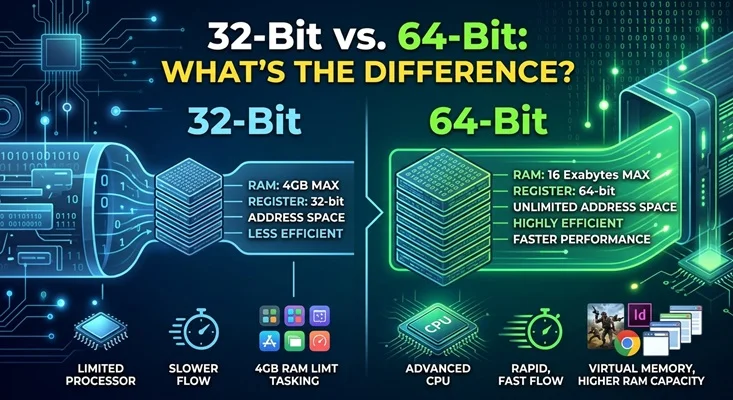
One important limitation is that a conventional 32-bit address space can represent 232 different addresses. That equals 4,294,967,296 addresses, or 4 GiB of address space. In practice, a 32-bit Windows computer often cannot give a single program access to a full 4 GB of RAM, and some memory may be reserved for hardware.
Windows 95, Windows 98, and Windows XP helped make 32-bit computing familiar to home users. Later Windows releases continued to support 32-bit editions for many years.
A 32-bit computer can still be useful for basic tasks, especially if it runs software designed for its hardware. However, 32-bit systems have significant limitations when it comes to memory and compatibility with newer applications.
64-Bit Computers: The Modern Standard
Most modern desktop and laptop computers use 64-bit processors and operating systems.
A 64-bit processor can work with 64-bit values and, depending on its architecture and operating system, can support vastly more memory than a conventional 32-bit system. This is particularly useful for demanding applications such as video editing, professional design software, virtual machines, large databases, and modern games.
Using the highway analogy, think of 64-bit computing as a much wider road that can accommodate more traffic at once. This can make a real difference when programs need to work with large amounts of data.
There is an important distinction, though: a 64-bit processor does not automatically make every task faster. Everyday activities such as reading email or browsing a simple website might show little noticeable difference between otherwise similar systems. The benefits depend on the program and the hardware.
The biggest practical advantages are often the ability to use more memory, run modern 64-bit software, and work with larger amounts of data efficiently.
| Reference |
|---|
|
#0060 CPU
Moore’s Law: The Force Behind Technological Growth |
Does 64-Bit Mean Twice as Fast?
No. This is one of the most common misunderstandings.
A 64-bit processor can work with wider values than a 32-bit processor, but that does not mean it automatically performs every task twice as fast.
Imagine a 12-lane highway with a speed limit of 25 miles per hour and a 6-lane highway with a speed limit of 70 miles per hour. The wider road does not necessarily get traffic to its destination sooner.
Processor speed, architecture, memory, storage, graphics, and software optimization all contribute to performance. A newer 64-bit computer will often outperform an older 32-bit computer, but that is not simply because 64 is twice 32.
What About Windows 7, Windows 8, Windows 10, and Windows 11?
Windows has supported both 32-bit and 64-bit editions, but Microsoft's approach has changed over time.
Windows 7
Windows 7 was available in both 32-bit and 64-bit editions. Many older computers ran the 32-bit version, while 64-bit editions became increasingly popular as computer memory capacities grew.
Windows 7 is no longer supported by Microsoft under its standard support lifecycle. It should not be used as a normal internet-connected operating system today because it no longer receives regular security updates.
Windows 8 and Windows 8.1
Windows 8 and Windows 8.1 were also available in 32-bit and 64-bit editions. The version you could install depended on your computer's processor and other hardware requirements.
Windows 8.1 support ended on January 10, 2023. Neither Windows 8 nor Windows 8.1 is a good choice for a computer that needs ongoing security updates.
Windows 10
Windows 10 was available in both 32-bit and 64-bit editions. Many older computers used 32-bit Windows 10, while newer systems generally used 64-bit Windows.
Windows 10 reached the end of standard support on October 14, 2025. Eligible personal computers may be able to receive additional security updates through Microsoft's Extended Security Updates program, but this is a temporary arrangement rather than a return to normal support.
If you are still using Windows 10, check your upgrade options, hardware compatibility, and available security-update coverage. See Microsoft's Windows 10 support information for details.
| Reference |
|---|
| #0029 Microsoft Should you pay for Windows 10 extended support? |
| #0020 Microsoft I upgraded my personal desktops to Windows 11! |
Windows 11
Windows 11 is designed for modern 64-bit processors and is available as a 64-bit operating system. It does not have a standard 32-bit edition.
This means an older computer with only a 32-bit processor cannot run Windows 11. A computer that supports 64-bit instructions must also meet Microsoft's other hardware requirements.
For most people buying a new Windows computer today, 64-bit is the normal choice.
Can a 64-Bit Computer Run 32-Bit Software?
Usually, yes. This is where things can get confusing.
A 64-bit version of Windows can run many traditional 32-bit Windows applications. Windows includes compatibility support that allows much older software to continue working without needing a 64-bit replacement.
For example, you might install a 32-bit photo editor, utility, or older office application on a 64-bit computer and never notice any difference in everyday use.
However, compatibility is not guaranteed. Older programs may depend on outdated drivers, obsolete components, or other features that no longer work with current versions of Windows. Some 16-bit applications also cannot run directly on 64-bit Windows without special compatibility solutions.
The reverse is not true: a 32-bit version of Windows cannot run ordinary 64-bit Windows applications.
Think of it as a highway interchange. A wider highway can still accommodate vehicles designed for an older, narrower road, provided the interchange and road rules allow them through. But a narrower road cannot suddenly accommodate every vehicle designed for the larger system.
Why Do Software Downloads Offer 32-Bit and 64-Bit Versions?
When you download software, you might see separate choices for 32-bit and 64-bit Windows. Which should you choose?
If you are running 64-bit Windows, the 64-bit version is generally the best choice when one is available and supported. It can take advantage of the 64-bit environment and use more memory when the application needs it.
Some software is still offered in 32-bit form because it works well for its intended purpose, supports older computers, or depends on components that have not been updated. A 32-bit program may also use less memory in some situations.
For example, a small utility that performs a simple task might gain little from being rewritten as a 64-bit application. A program that handles large images, videos, or complex data may benefit much more.
Some software packages include both 32-bit and 64-bit components. Other applications are available only in 64-bit versions.
Before installing software, check the requirements and download it from the developer's official website. Avoid assuming that a 64-bit version is always better for every individual program.
What About Linux? Are There 32-Bit and 64-Bit Versions?
Linux is an alternative to Windows, and it comes in many different distributions. A distribution, often called a distro, is a complete operating system built around the Linux kernel, along with software and tools.
Like Windows, Linux has historically supported both 32-bit and 64-bit computers. Today, most mainstream desktop Linux distributions focus on 64-bit systems, although some projects continue to support older 32-bit hardware.
Linux can be a useful option if you have an older computer that no longer runs a supported version of Windows well. However, the right choice depends on the processor, memory, graphics hardware, and the applications you need.
Linux Options for Older Computers
Linux Mint is a popular choice for people moving from Windows. Its familiar desktop layout makes it relatively easy for beginners to learn. Current mainstream Linux Mint releases focus on 64-bit computers, so check the requirements before installing it on older hardware.
Lubuntu is a lightweight Linux distribution that uses the LXQt desktop. It can be a good option for computers with limited resources, but current releases are generally aimed at 64-bit hardware.
Debian is a long-established Linux distribution with broad hardware support. Its architecture choices depend on the release, and certain 32-bit architectures remain supported. Debian can be a good option for users willing to learn a little more about Linux.
antiX is designed with lightweight computing in mind and continues to offer options for older 32-bit and 64-bit PCs. It may be useful for aging hardware, although its interface may take more getting used to than Linux Mint.
Linux is not a magic solution for every old computer. A machine with a failing hard drive, very little memory, or unsupported hardware may still struggle. And Windows-only software may require a replacement application or a different approach.
Before installing Linux, make sure you have backed up your files and checked that the programs you depend on are available. If you are considering replacing Windows on a computer you use every day, trying Linux from a USB drive first can help you check whether the hardware works properly.
| Reference |
|---|
| #0035 Linux What is Linux? A Brief Introduction to the Free OS |
| #0017 Linux Do You Own a Computer That Won’t Run Windows 11? |
How Do You Find Out Whether Your Computer Is 32-Bit or 64-Bit?
If you use Windows 10 or Windows 11, you can check your system information without opening the computer.
Open Settings, select System, and then select About. Look for the entry labeled System type.
It will tell you whether you have a 32-bit or 64-bit operating system and identify the processor architecture Windows reports.
If you have 64-bit Windows, you have a 64-bit operating system. If you have 32-bit Windows, your processor might still support 64-bit instructions, so check the processor information as well before deciding that the computer cannot run a 64-bit operating system.
On an older computer running Windows 7 or Windows 8, the same basic information can usually be found in the System section of Control Panel.
The Bottom Line
The difference between 8-bit, 16-bit, 32-bit, and 64-bit computing comes down to how processors work with information and, importantly, how much memory and what kinds of software their systems can support.
Eight-bit and 16-bit computing played important roles in the early days of personal computers and video games. Thirty-two-bit systems brought more capable software to everyday computers, while 64-bit computing has become the standard for modern desktop systems.
If you are using a modern Windows computer, it is almost certainly running a 64-bit operating system. That is generally what you want, especially if you need current software and plenty of memory.
If you have an older computer that cannot run a current, supported version of Windows, Linux may be worth investigating. Just remember to check hardware compatibility and software requirements before making the switch.
And if you are still unsure what your computer supports, Meyer Computer can help you determine whether your system is 32-bit or 64-bit and what your upgrade options are.
Amazon Links - These are products we recommend
Meyer Computer is an Amazon Affiliate. We may earn a small commission from qualifying purchases made through the links below.Thank you for supporting us!