
|
|
||||||||||
Layered Network Security for Home & Business
There isn't a single, perfect security solution
Keywords:
security, network, backups, protection, internet
Key Takeaway:
Keeping your home or small‑business network
secure doesn’t have to be complicated.
Category Insights:
SECURITY — Security best practices include strong passwords, MFA, and regular
patching.
Each Layer Protects a Different Angle of Attack
Keeping your home or small‑business network secure doesn’t have to be
complicated. Modern threats come from many directions—malware, phishing, hacked smart
devices, weak passwords, and even power outages. The best approach is to build multiple
layers of protection, so if one layer fails, the others are still working for you. This
guide walks through the most effective layers you can add, why they matter, and how they fit
together.
In short, it doesn't matter what layer stops a threat. You want the threat stopped before
any potential damage occurs to your system. This article is an overview of some of the
things you can do to protect your home computer, home network or small business
network. There are links provided to additional articles that contain more information on
specific topics.
Security is paramount and this is a MASSIVE topic. Meyer Computer will be continuously
adding new articles and revising existing articles as needed for our customers. (Especially
when it comes to security related issues.)
Reference:
#0044 Security Computer Security Terms Defined
ISP Firewall: Your First Line of Defense (It's NOT enough)
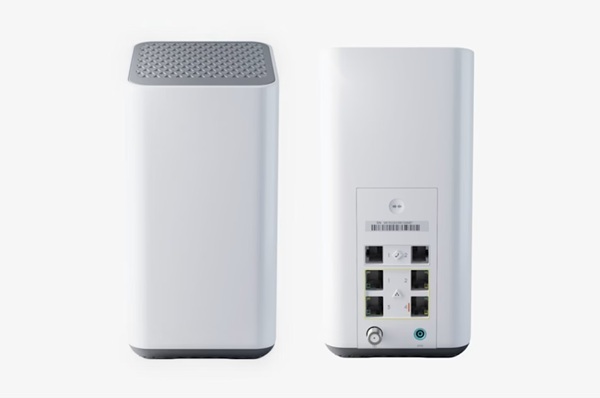
Most internet service providers (ISP) include a basic firewall inside the modem
or gateway they install. If you’re using a Comcast, Frontier, or Mediacom gateway, you
already have this layer in place. ISP firewalls block some unwanted traffic before it
reaches your home, and they require little or no setup. In reality, most Internet customers
never do anything with it.
Unfortunately too many people stop here. This is a mistake. These devices are limited. You
usually can’t customize them all that much (if at all), and you’re relying on the ISP to
keep them updated. Think of this as the “front gate” to your property—useful, but not enough
on its own.
Wireless Router and Firewall: Stronger Protection and Better Control
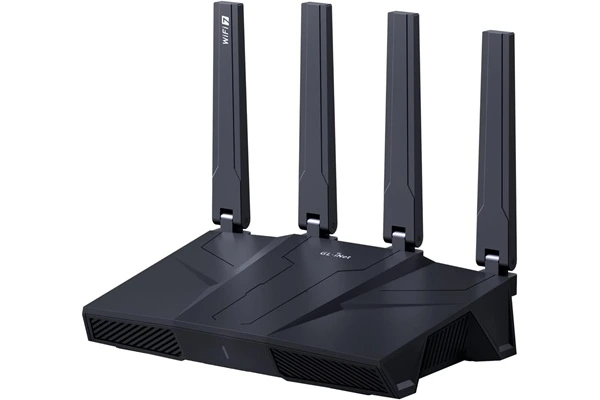
A dedicated wireless router adds a much more powerful firewall and gives you
full control over your home network. This is one of the most important upgrades you can
make. A good router improves Wi‑Fi performance, strengthens security, and lets you manage
passwords, guest networks, parental controls, and connected devices.
At this time, it’s wise to avoid certain low‑cost Chinese‑made brands—such as
TP‑Link—because they may face restrictions or bans in the United States. Choosing reputable
hardware ensures long‑term support and security updates.
We do have brands that we like, but the recent ban has caused quite an upset of the industry
and everything must be re-evaluated for compliance.
The GL.iNet devices have great software on their own. They also have the ability to replace
that software with open source software such as pfsense,
OPNsense, and OpenWrt.
If you want even better protection, go with SonicWall or a Ubiquiti solution. However, most
of these units are firewalls ONLY. You will need a separate wifi solution.
Reference:
#0097 Internet BREAKING NEWS: The FCC has banned the sale of foreign made routers
#0032 Security Internet How often should I replace my router?
#0009 Opinion Buyers Guide The Companies We Like, Use and Recommend (updated periodically)
#0008 Opinion Buyers Guide Companies We Don't Like (updated periodically)
Data Encryption
Encryption is one of the most important security tools in modern computing, even
though most people never interact with it directly. At its core, encryption is the process
of converting your data into unreadable information that can only be unlocked by the
intended sender and receiver. This protects your personal information from hackers,
eavesdroppers, and anyone who shouldn’t have access to your data.
The good news is that encryption is built into nearly every modern operating system, web
browser, and online service. For most home users, there’s nothing special you need to
configure—your devices already use encryption behind the scenes. However, if you ever need
to work with encryption settings manually, it can get technical quickly. In those cases,
it’s perfectly reasonable to contact your tech support person for help.
Website Encryption (HTTPS)
When you visit a website, always make sure the address begins with https:// instead of http://. The “s” stands for “secure,” meaning the connection between your browser and the website is encrypted. Google now requires HTTPS for websites that want to appear in search results, so it’s rare to find a link to a legitimate website site that isn’t encrypted. If you do encounter one, proceed with caution.
Encrypted File Transfers (SFTP)
If you ever transfer files to a server—common for website owners or small businesses—use sftp:// instead of ftp://. SFTP encrypts your login information and the files you’re sending. Regular FTP sends everything in plain text, which makes it easy for attackers to intercept.
Encrypted DNS
DNS is the system that translates website names into IP addresses.
Modern networks often use encrypted DNS automatically, usually over port 443. This
prevents outsiders from seeing which websites you’re trying to visit. Most home
users don’t need to configure anything here, but it’s good to know that encrypted
DNS is becoming the standard.
Encrypted Email
If you use traditional email software like Outlook Classic or
Thunderbird, your email provider will require encrypted connections. It's
increasingly rare for any service to allow unencrypted email.
Port 587/465 is used for sending email securely (SMTP).
Port 993 is used for receiving email securely (IMAP).
Port 995 is used for receiving email securely (POP3).
OAuth & OAuth2 is login encryption used by email software
If you use web‑based email such as Gmail, Outlook.com, or Yahoo Mail, you don’t need
to worry about ports—your browser handles encryption automatically through HTTPS.
Hard Drive Encryption (BitLocker)
Windows users have access to BitLocker, Microsoft’s built‑in whole‑disk encryption tool. BitLocker protects your files if your computer is lost or stolen by making the entire drive unreadable without your password or recovery key. Many business‑class computers enable BitLocker by default, but home users can turn it on manually if they want an extra layer of protection.
Reference:
#0069 Security What Major Email Services Now Require OAuth2?
#0059 Security Bitlocker: Is it a Feature or Your Worst Nightmare?
VPN: Useful in Specific Situations
A VPN (Virtual Private Network) creates an encrypted connection between your
device and the internet. There is a LOT of marketing hype around all VPN software. Much of
this is mis-understood by the general public.
It’s not required for everyday home use because your data is already encrypted. (See the
encryption section above.), However it’s extremely helpful in certain situations. If you
travel, use public Wi‑Fi, or need to connect securely to a workplace, a VPN adds a valuable
layer of privacy. It will also hide your IP address which can be especially useful for
reporters, investigators, whistle-blowers, spies, hackers, people who pirate software and
anyone who needs extreme secrecy. Remember that a VPN doesn’t replace antivirus software or
good security habits.
A VPN service can be established in different ways.
- The VPN software can be installed and used with your Windows or Linux operating system.
- The VPN software can be installed on your router to cover ALL the devices on your network. (Requires a router with this ability).
- Router to Router - This is common between businesses with multiple locations.
Keep in mind that VPNs can slow down your connection. The computer or router
must perform the encryption task and the traffic is routed through an additional server.
This adds security but results in slower transfer speeds.
Reference:
#0018 Internet Does A VPN hurt your Internet speed?
Antivirus, Anti‑Malware, and Software Firewalls
Every computer should have reliable antivirus and anti‑malware protection. Even
careful users can encounter malicious email attachments, infected downloads, or compromised
websites. A good security suite helps detect threats early and blocks suspicious
activity.
It’s important to avoid running multiple antivirus programs at the same time, as they can
conflict with each other and reduce your protection.
There are a LOT of antivirus programs available and every IT person is likely to have a
different recommendation. Most of them are pretty good but some will nag you with ads and
bloatware. Some slow your computer to a crawl. At the time of this writing; we recommend the
following:
- BitDefender - for more advanced protection
- Malwarebytes - for older / slower computers
- Windows Defender - free alternative
Reference:
#0044 Security Computer Security Terms Defined
#0046 Opinion SecurityMy Thoughts on Antivirus Software
#0011 SecurityShould You Use Multiple Antivirus Programs?
#0009 Opinion Buyers GuideThe Companies We Like, Use and Recommend (updated periodically)
#0008 Opinion Buyers GuideCompanies We Don't Like (updated periodically)
Email Security
This section will be expanded soon!
The list below outlines several things you should be using or adding to your
security configuration.
- Use secure encrypted ports
- Consider using Spam filter software
- Watch for SCAM emails
- Use an email provider that supports Oauth2
Reference:
#0069 Security What Major Email Services Now Require OAuth2?
#0051 Security How to Spot SCAM Emails
Password Manager Software: Stronger Security With Less Effort
Weak or reused passwords are one of the biggest security risks for home users
and small businesses. A password manager solves this problem by generating strong, unique
passwords and storing them securely so you don’t have to remember them.
A good password manager can:
- Automatically fill in login forms
- Sync passwords across your devices
- Store secure notes, Wi‑Fi keys, and recovery codes
- Warn you if a password has been exposed in a data breach
Using a password manager is one of the easiest ways to dramatically improve your
security without adding extra work to your day.
Click this link for a free, random password generator. You can use it to create strong passwords for your accounts. Make sure to save them in your password manager as they will be difficult to remember. I recommend using 16 characters, turn OFF symbols and similar characters.
Reference:
#0055 Security How do passwords really work?
#0015 Security New Government Password Recommendations
Web Browser Choices
When it comes to web browsers, you have more choices than ever. Some are
more secure than others. Just because a browser is popular or has a large market share
doesn't make it secure or private. Always remember to keep your browser software
updated!
More security, less user tracking:
- Tor (secure, but slow & restrictive)
- Mullvad (secure, but slow & restrictive)
- Brave (Considered #1 by many)
- Hardened Firefox
- LibreWolf
- Duck Duck Go
- Chromium (not to be confused with Chrome)
Popular, but have considerable tracking:
- Chrome
- Edge
- Vivaldi
- Safari
- Opera
Ad‑Blocking Browser Extensions
Browser‑based ad blockers such as uBlock Origin or
AdBlock Plus help reduce pop‑ups, malicious ads, and tracking scripts. They
make browsing cleaner and safer, but some websites detect them and may ask you to disable
the extension before you can continue.
Ad blockers are a simple, effective layer of protection, especially when combined with
Pi‑Hole.
Reference:
#0095 Beginner Internet Understanding Browser Extensions and How They Work
Pi‑Hole: Network‑Wide Ad and Tracking Blocking
NOTE: This is a more advanced concept for power users and business. It's extremely powerful but less likely to be found in a home network.

Pi‑Hole is software that runs on a small device to filters ads, trackers, and
telemetry before they reach your devices. Instead of installing ad blockers on every
computer, Pi‑Hole protects your entire network at once. It can speed up browsing, and block
many forms of tracking used by apps and websites.
Reference:
Review Pi-Hole - Internet ad-blocker, web filter, w/optional DHCP & DNS capabilities
DNS Filtering
This is a super easy way to filter out Adult and Malware content. It can be
configured on your individual computer or on your router. In many cases it also provides an
increase of your internet access speed! Please refer to our complete guide using the link
below.
Reference:
#0039 Internet Speed Up Your Internet With an Alternative DNS Server
Check for Open Ports
This section will be expanded soon!
Run a port scan on your IP address. Check for open SSH, RDP, VNC, FTP, DNS etc...
These
ports are common vectors of attack used by hackers and malware. If any of these are open,
its a bit like locking your house but leaving a window open. You may want to find out the
reason why its open and close each one to increase your security.
VLANs: Separating Computers from Other Devices
NOTE: This is a more advanced concept for power users and
business. It's extremely powerful but less likely to be found in a home
network.
A VLAN (Virtual Local Area Network) lets you split your network into separate
sections. This is especially useful if you have smart TVs, streaming sticks, cameras, or
other IoT devices. These devices are convenient, but they are also common targets for
hackers.
By placing your computers on one VLAN and your smart devices on another, you reduce the risk
of a compromised device spreading to the rest of your network. Most basic home routers DO
NOT support VLANs, so you’ll need a better router such as Synology, Ubiquiti, pfSense,
GLI, or Cisco if you want this level of control. Some advanced users may go to the extent of
building custom routers and using open source router software such as OpenWRT.
Setting up this type of network segregation will depend on what equipment you own or plan to
purchase for your network and is beyond the scope of this article.
VLAN example that segregates your network:
- Main Lan - Main desktops and laptops (ONLY)
- VLAN 4 - Security cameras & other devices such as Roku/Firestick/Alexa etc..
Honeypot
NOTE: This is a more advanced concept for business. It's extremely
powerful but highly un-likely to be found in a home or even a small business
network.
A honeypot is a deliberate decoy used to lure cyber attackers. Organizations set up a server
or device that mimics a legitimate business system, but it contains entirely fake data and
no real operational value. To an attacker, it appears to be a valid target within the
network.
When hackers or malware interact with the honeypot, they reveal their tactics, techniques,
and entry methods. Meanwhile, security teams closely monitor this activity without risking
actual systems or data. The insights gained are then used to strengthen defenses, helping
protect the real network from future attacks.
A honeypot is popular with government agencies, banks, financial institutions, law firms,
schools and universities, but can be used for any business. They work!
UPS / Backup Power: Protecting Your Equipment and Data
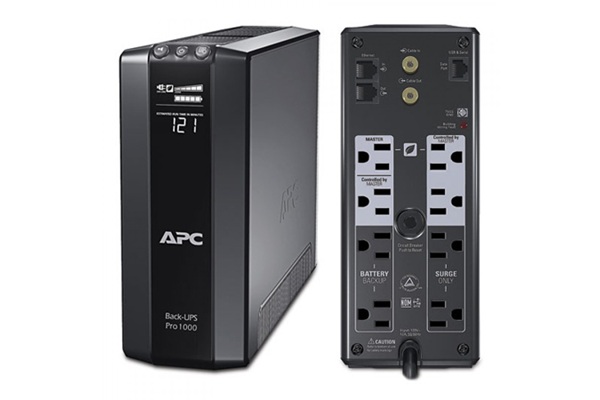
A UPS (Uninterruptible Power Supply) keeps your computer running during a power
outage. Don't confuse it with a simple surge protector, although it does that as well. A UPS
contains a large battery to provide your devices with 110v during brownouts or blackouts.
It’s not meant to keep you online for hours—it’s designed to give you enough
time to save your work and shut down safely. A UPS also protects your equipment from power
surges and voltage drops, which can damage sensitive electronics.
Primary (mission critical) desktops should use a 1500 watt system while smaller systems can
utilize a 1000 watt system. It's always better to go larger as it will provide more run
time. Smaller units are available but they may not provide sufficient run-time. Its also a
good idea to protect your network equipment including your modem/firewall/router and network
switch.
Some UPS units will include insurance (upon product registration). -- If your equipment is
damaged by power issues when properly hooked up to the UPS, the manufacturer will reimburse
the cost of the equipment.
Meyer Computer recommends APC brand UPS units.
Reference:
#0009 Opinion Buyers Guide The Companies We Like, Use and Recommend (updated periodically)
#0008 Opinion Buyers Guide Companies We Don't Like (updated periodically)
Backup Systems: The Most Important Layer of All
Backups are often ignored until disaster strikes. Whether it’s a hardware
failure, ransomware attack, accidental deletion, or a stolen laptop, losing your data can be
devastating. A proper backup system ensures your files are safe no matter what
happens.
Local Backups
Local backups are stored on a device you physically own—usually an external hard drive or a NAS (Network Attached Storage).Pros:
- Fast backups and restores
- No monthly fees or limits
- Full control over your data
Cons:
- Vulnerable to fire, theft, or hardware failure
- Only works if the backup drive is connected regularly
Cloud Backups
Cloud backups store your files on secure servers operated by a backup provider.Pros:
- Off‑site protection (safe from local disasters)
- Automatic backups with no hardware to manage
- Accessible from anywhere
Cons:
- Requires an internet connection
- Monthly or yearly subscription fees
- Restores can be slower for large amounts of data
The Best Approach
Use both!- A local backup gives you speed.
- A cloud backup gives you safety.
- Together, they create a reliable, disaster‑proof system.
Reference:
#0062 Harddrives Networks What Is a NAS? A Guide to Network Attached Storage
#0054 Beginner What is Microsoft One Drive?
Putting it all together
At Meyer Computer we use most of these layers with the exception of the VPN and
Honey Pot. A VLAN is not in use at this time but is planned as a future project.
The combination of the ISP firewall, GL.iNet firewall, Windows Firewall and the Pi-Hole
provides use with a quadruple layer of protection. The ad and telemetry blocking is a
bonus.
Frequently Asked Questions
Do I need more than one firewall for my home or business?
Yes. Your ISP modem provides a basic firewall, but adding a router firewall gives you
stronger protection and more control over your network.
What is the benefit of using VLANs?
VLANs separate devices into different network segments. This prevents smart TVs, IoT
devices, and guest devices from accessing your main computers.
Is Pi-Hole worth using?
Pi-Hole blocks ads and tracking at the network level. It reduces unwanted traffic, speeds up
browsing, and improves privacy across all devices.
Do I need a VPN at home?
A VPN is useful on public Wi‑Fi or when you want privacy from your ISP. For normal home use,
it’s optional and may slow down streaming.
Why is a backup system part of network security?
Backups protect your data from hardware failure, ransomware, accidental deletion, and
disasters. A layered security plan is incomplete without reliable backups.
Amazon Links - These are products we recommend
Meyer Computer is an Amazon Affiliate. We may earn a small commission from qualifying
purchases made through the links below.
Thank you for supporting us!
- GL.iNet GL-SFT1200 Opal Travel Router, AC1200 Dual-Band Wi-Fi
- GL.iNet GL-MT3000 Beryl AX Wi-Fi 6 Travel Router
- GL.iNet GL-BE9300 Flint 3 Tri-Band Wi-Fi 7 Router
- APC UPS 1500VA/900W Battery Backup
- APC UPS 1000VA/600W Pure Sine Wave UPS
- Jackery HomePower 1000 v2 Power Station
- Jackery Explorer 2000 v2 Portable Power Station
- Malwarebytes Standard, Premium Security| 18 Months, 2 Devices | PC/Mac
- Malwarebytes Standard, Premium Security | 1 Year, 5 Devices | PC/Mac
- Malwarebytes Standard, Premium Security | 1 Year, 10 Devices | PC/Mac
- Bitdefender Total Security - 3 Devices | 1 year Subscription | PC/Mac
- Bitdefender Total Security - 5 Devices | 1 year Subscription | PC/Mac
- Bitdefender Total Security - 10 Devices | 1 year Subscription | PC/Mac