
|
|
||||||||||
What Is a NAS? A Guide to Network Attached Storage

Keywords:
network, storage, computer, digital, server
Key Takeaway:
Ever wished you could access your files from
anywhere, keep your data safe, and share media with your family or team—all
without relying on cloud subscriptions?
Category Insights:
HARDDRIVES — Hard drives store your data; reliability and backups are
critical.
NETWORKS — Efficient networks rely on low latency, proper routing, and good
hardware.
What Does NAS Stand For?
Have you ever wished you could access your files from anywhere, keep your data
safe, and share media with your family or team—all without relying on cloud subscriptions?
That’s where a NAS comes in to play. Read on.
NAS stands for Network Attached Storage. It’s a specialized device connected
to your network that stores files and makes them accessible to multiple devices—kind of like
your own personal cloud server. Unlike a regular external hard drive that plugs directly
into your computer, a NAS connects to your home or office network, so any device on that
network (and even remotely over the internet, if set up) can access it.
What Does a NAS Do?
A NAS works much like a compact, energy‑efficient computer whose entire purpose
is to store, organize, and deliver your files. Instead of scattering documents, photos, and
videos across multiple devices, a NAS centralizes everything in one place. This makes it
easy to access your data from a phone, tablet, laptop, or even a smart TV, and it ensures
that everyone in your home or workplace interacts with the same up‑to‑date files.
Beyond simple storage, a NAS often becomes the backbone of your backup
strategy. Many systems can automatically back up computers, phones, and tablets
on a schedule, protecting you from accidental deletion, hardware failure, or malware.
Instead of relying on manual backups or external drives that get misplaced, the NAS quietly
maintains copies of your important data in the background.
A NAS can also transform into a media server. With platforms like Plex or
DLNA, it can organize your movies, music, and photos and stream them to nearly any device in
your home. This turns your NAS into a private streaming hub, eliminating the need to keep
large media libraries on individual devices.
Its design makes it ideal for multi‑user environments. Families can share
photo libraries, businesses can collaborate on documents, and teams can maintain shared
project folders. Permissions can be tailored so each person sees only what they’re supposed
to, keeping sensitive information protected while still enabling smooth
collaboration.
Finally, many NAS systems offer secure remote access, allowing you to reach
your files from anywhere in the world. Whether you’re traveling, working remotely, or simply
away from home, you can log in securely and retrieve what you need. This turns the NAS into
a personal cloud—one you control entirely.
What’s Inside a NAS?
A NAS may look like a simple box sitting on a shelf, but inside it functions
much more like a compact, purpose‑built computer designed for reliable storage. Most units
include multiple drive bays, allowing you to install the disks that will hold your data.
These bays typically support standard 3.5‑inch or 2.5‑inch drives, and many NAS systems
allow hot‑swapping, meaning you can replace a drive without shutting the system down. Some
people choose SSDs for faster performance, but doing so significantly increases cost,
especially if you’re filling several bays.
Larger enterprise‑grade NAS units can hold dozens of drives and support complex storage
configurations, but those systems are designed for data centers and high‑demand
environments. For home users and small businesses, the typical 2‑to‑8‑bay models offer more
than enough capacity and flexibility.
Inside the chassis, you’ll also find a CPU and RAM, which
allow the NAS to run its operating system and any additional services you enable. The
processor is usually optimized for efficiency rather than raw power, since the NAS focuses
on file management rather than heavy computation. Most devices ship with enough RAM for
everyday use, but if you plan to run virtual machines, host media servers, or install extra
applications, upgrading the memory can improve performance.
Connectivity comes from one or more network ports, which link the NAS to
your router through Ethernet. While basic models still use standard gigabit ports, many
modern NAS devices support 2.5G, 5G, or even 10G networking. These faster connections help
future‑proof your setup and ensure that your NAS can keep up as your home or office network
speeds increase.
All of this hardware is tied together by a dedicated operating system.
Platforms like Synology DSM and QNAP QTS provide polished interfaces, app ecosystems, and
advanced management tools. They handle storage configuration, user permissions, backups,
media streaming, and remote access. More basic systems, such as WD MyCloud, offer simpler
functionality with fewer customization options. The operating system is what transforms the
NAS from a box of drives into a flexible, centralized storage hub.
Who Should Use a NAS?
A NAS can be useful for:
- 📷 Photographers & videographers: Store large files and access them quickly.
- 🏠 Home users: Centralize family photos, videos, and backups.
- 🧑💼 Small businesses: Share files and collaborate across a team.
- 🎮 Gamers & streamers: Archive game recordings and media.
- 👨🔧 Tech enthusiasts: Run apps like Docker containers, home automation, and more.
Is a NAS Secure?
A NAS can be secure, but its safety depends entirely on how
thoughtfully it’s configured and maintained. When set up well, a NAS becomes a reliable,
centralized place to store and share data—whether for a household, a small business, or a
collaborative team.
Security begins with strong password protection. A NAS is essentially a
small server, and like any server, it needs credentials that aren’t easy to guess or reuse.
Good password hygiene prevents unauthorized users from getting in, and most NAS platforms
let you enforce complexity rules or rotate passwords regularly.
Modern NAS systems also support two‑factor authentication, which adds a
second layer of verification beyond the password. Even if someone manages to obtain your
credentials, they still can’t access the NAS without that second factor—usually a mobile app
or hardware token. This dramatically reduces the risk of remote compromise and is one of the
simplest ways to harden a NAS.
Another major pillar is encrypted drives. Encryption ensures that even if
someone physically steals the NAS or its disks, the data remains unreadable without the
proper keys. This protects sensitive files from physical theft, hardware resale, or improper
disposal.
A secure NAS also relies on automated backups. While backups aren’t
strictly a security feature, they protect you from ransomware, accidental deletion,
corruption, or hardware failure. Many NAS platforms can back up to cloud storage, external
drives, or even another NAS. This redundancy ensures your data remains safe and
recoverable.
Most NAS systems include firewall and antivirus tools as well. These help
filter incoming connections, block suspicious activity, and scan files for malware. While
they shouldn’t replace a network‑wide security strategy, they add an important layer of
protection directly on the device.
Finally, NAS devices shine because they allow fine‑grained access control.
You can decide exactly who can view, edit, or manage specific folders. This is especially
valuable for families, teams, or small businesses where different people need different
levels of access. It keeps sensitive information limited to the right individuals and
prevents accidental changes or exposure.
A NAS is secure when these layers work together—strong authentication, encryption, backups,
system protections, and thoughtful user permissions.
How Much Does a NAS Cost?
It depends! Here’s a quick range:
- Entry-level 1-2 bay NAS: $150–$300 (without drives)
- Mid-range 2-4 bay NAS: $300–$600
- High-performance or business NAS: $600 and up
Remember, you’ll also need to buy hard drives separately unless you get a
bundle. Unfortunately the recent increase in drive prices have made NAS units more
expensive. However, NAS hardware tends to be a one time purchase and you do not need to
populate every bay. For example, you can buy a 4 or 6 bay NAS and start with only 2 drives.
More drives can be added as funds allow or when you need more space.
| Reference |
|---|
| #0075 Harddrives What Do WD Hard Drive Colors Mean? |
Popular NAS Brands
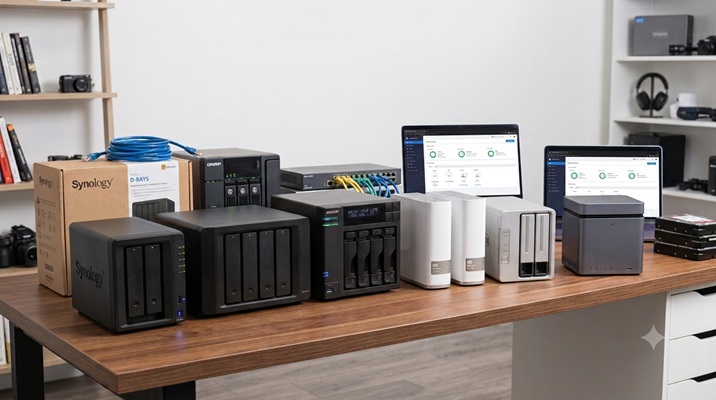
As with any product, I recommend you assess your needs and do your research.
Everyone uses a NAS for storage, thats the simple part. But, consider what additional tasks
you might want to employ on the device. Consider the operating system on the device. You
will find that Synology and QNAP will give the most functionality but may be moire expensive
to purchase. If you don't need those features, you can go with a simple Western Digital.
Some of the most popular NAS manufacturers include:
- Synology - This is the brand I use, as it has a great software suite.
- QNAP
- Asustor
- Western Digital (WD My Cloud)
- TerraMaster
- UGreen - The new kid that gets great reviews, but is Made in China.
Final Thoughts
A NAS is like having your own private cloud storage—more control, more
privacy, and often more capability. Whether you're looking to store family photos, share
work documents, or stream movies at home, a NAS can be a powerful addition to your
digital life.
Frequently Asked Questions
What is a NAS and what does it do?
A NAS is a small, dedicated storage device that connects to your home or office network. It
stores files in one central place so multiple devices can access them.
Is a NAS better than an external hard drive?
A NAS is better for shared access, backups, media streaming, and multi‑device environments.
An external drive is fine for single‑user storage but lacks network features.
Can I access my NAS from outside my home?
Yes. Most NAS systems support secure remote access, allowing you to reach your files from
anywhere using apps or web portals.
Is a NAS safe for storing important files?
A NAS is safe when configured properly. Features like RAID, user permissions, encryption,
and automated backups help protect your data.
Do I need RAID on my NAS?
RAID is optional but recommended. It protects your data if a drive fails. RAID is not a
backup, but it improves reliability and uptime.