
|
|
||||||||||
Basic Concepts of a Small Business Network
An Introductory Overview
Keywords:
server, network, computer, business, printers
Key Takeaway:
Each computer uses an Ethernet cable (Often
blue or beige but it can be any
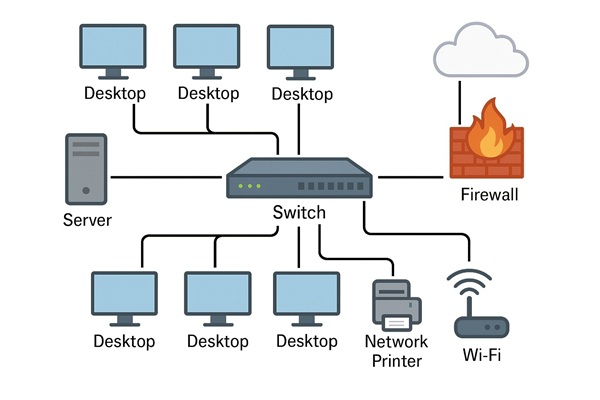
color) to connect to a central device called a network switch .
Category Insights:
NETWORKS — Efficient networks rely on low latency, proper routing, and good
hardware.
How Are Computers Connected?
Each computer uses an Ethernet cable (Often blue or beige but it can be any
color) to connect to a central device called a network switch. The
server and the firewall are also connected to this switch. The firewall then connects to
the internet. The most common speed is currently Gigabit, but some networks are now
running at higher speeds such as 2.5Gb, 10Gb and even 100Gb!
If you were to draw it out, the network would look much like a star, with
the switch in the center. It can be simple like this one, or it can be scaled up to have
hundreds or even thousands of devices.See the diagram above.
What is a Network Server?
A network server is a computer that stores important files and settings for
your business. A small business may have a single server vs. a large corporation that
may have thousands of servers. The business can add more users and servers as
needed.
Businesses typically do NOT allow users to save files on the individual
desktops. Instead of saving everything on each employee's computer, files are saved in
one central location one a server or NAS. It may be called something like
\\SERVER. Using one or more servers will provide an entire range of
benefits and services for the business including:
- Easier, centralized backups
- Consistent Login security
- File sharing & security
- Folder security
- DNS and DHCP services
- Network time control
- Physical security
- Easily swap desktops as all data is on the server.
- Desktops can be standardize only the software they need for each department.
- Users can be prevented from installing unauthorized software.
- Dedicated Database Server
- Dedicated Payroll Server
- Dedicated Application Server
- Dedicated Printer Server
- Dedicated Storage Server
What is a NAS?
Network Attached Storage (NAS) is similar to a server. It's primary
function is to provide mass storage of shared files and folders on the network. However,
some NAS units now offer some server functions via apps, containers and virtual
machines. A NAS is essentially a small computer with 2 or more disk drives. It connects
to the network switch and is accessed from other computers on the network. There are no
ports for a monitor, keyboard or mouse.
Depending on the needs of the business, some small smaller businesses opt to go with a
NAS in place of a server.
| Reference |
|---|
| #0062 Harddrives What Is a NAS? A Guide to Network Attached Storage |
User Accounts
Each person who uses a computer gets a unique username and password. The
network administrator sets the rules for these passwords. They can choose things
like:
- Minimum length
- Whether letters, numbers, or symbols are required
- How often passwords must change
- Whether old passwords can be reused
Naming Conventions
This will vary from business to business. Meyer Computer likes to use the
persons first initial followed by the Last name for both the network username as well as
the users email address. This example uses the name John Doe.
- Short username:
JDOE - Long username:
DOMAIN\JDOE - Email address:
JDOE@domain.local
Folders on the Server
Shared folders can be created on the server help teams work together. The
goal is to avoid using thumb drives to share files. Now you can simply place everything
on the server. Its much more secure. Private folders are just for individuals (This is
where you hide your resume on your work computer!). Some example folders could
include:
- ACCOUNTING – for the accounting department
- PAYROLL – for payroll staff
- ENGINEERING – for engineers
- CUST_SERVICE – for customer service reps
- PURCHASING – for the purchasing department
Groups like "Accounting" or "Engineering" can be created by the
Administrator from the server to give permission to several users at once, making setup
and management easier.
Browsing for Files
To find shared files on the network:
- Open File Explorer also called This PC or
Computer depending on what version of Windows you are
using. Microsoft tends to annoyingly change the name of some things from one
version to the next. The icons will look something like this:
 Actual screenshot: File explorer icon
 Actual screenshot: My computer icon
 - Click on Network on the left side to view other computers, servers, or printers
- You can also click on any network mappings that you see listed. (discussed below)
You can also type a location path directly into the address bar. An IP
address can also be used in lieu of a server name, like these examples:
\\SERVER\USERS\USERNAME\\SERVER\ACCOUNTING\\SERVER\PAYROLL\\SERVER\ENGINEERING\\SERVER\CUST_SERVICE\\192.168.1.30\OFFICEWhat Is a Mapped Drive?
A mapped drive is like a shortcut (pointer) to a shared folder that resides
on a network server. It saves time and keeps things organized. These are some
examples:
G:\ACCOUNTING– Accounting department (accounting group only)O:\OFFICE– General office files (everyone can access)S:\SOFTWARE– Software folder (read-only)U:\USERNAME– Personal user folders (private)
There are 26 drive letters available (A to Z), but more options exist if
needed.
Sharing Printers and Scanners
Printers and scanners are connected to the network via Ethernet and can be
shared from the server by the network administrator. Printers can also be shared from
any other connected computer on the network. However, servers are the most logical
choice as they run 24/7. Multiple printers are common. If one printer isn't working, you
can send your document to another printer in the office. You might see a high-volume
monochrome lasers, maybe a color laser or even an inkjet for higher quality photo
printing. This gives the user a choice when printing documents. All printers will show
up in the Windows / Linux printer folder. Printers can also have security assigned to
them by the network administrator. For Example: The accounting department may have a
separate printer for printing checks. You don't want someone printing a report on check
stock.
Wrapping Up
This is just a basic overview of a small business network intended for beginners.
There are more advanced options available, but this should help you to get a basic
understanding of servers, user accounts, file sharing, and mapped drives.
This is a VERY large topic. Entire books and many courses are available.
Additional entry level content will be appended to this article at a future time.
If your interested in network services, we can help!
| Reference |
|---|
| Services Network Services offered by Meyer Computer |
Frequently Asked Questions
What is the main difference between a home network and a small business
network?
A small business network usually includes stronger security, multiple user devices, shared
resources, and equipment designed for reliability and scalability.
Why do businesses use both a router and a switch?
The router connects the business to the internet and manages traffic, while the switch
connects multiple internal devices so they can communicate efficiently.
What role does DHCP play in a business network?
DHCP automatically assigns IP addresses to devices, ensuring they can communicate without
manual configuration. This reduces setup time and prevents address conflicts.
Do small businesses need a firewall?
Yes. A firewall protects the network from outside threats, blocks unauthorized access, and
helps enforce security policies.
Why is network segmentation important?
Segmentation separates devices into different groups, improving security and performance. It
prevents guest devices or IoT equipment from accessing sensitive business systems.
Amazon Links - These are products we recommend
Meyer Computer is an Amazon Affiliate. We may earn a small commission from qualifying
purchases made through the links below.
Thank you for supporting us!
- Tecmojo 12U Network Rack, 10 inch Mini Server Rack - Black
- Tecmojo 0.5U Rack Shelf for 10" Server Rack & Cabinet
- Tecmojo 2 Pack 0.5U Horizontal Cable Manager with 3 D-Rings, Metal Rackmount Cable Organizer
-
Tecmojo 12-Port Cat6 Patch Panel, 0.5U Rack Mount Modular Panel with Keystone
Coupler
ANTIVIRUS
- Malwarebytes Standard, Premium Security| 18 Months, 2 Devices | PC/Mac
- Malwarebytes Standard, Premium Security | 1 Year, 5 Devices | PC/Mac
- Malwarebytes Standard, Premium Security | 1 Year, 10 Devices | PC/Mac
- Bitdefender Total Security - 3 Devices | 1 year Subscription | PC/Mac
- Bitdefender Total Security - 5 Devices | 1 year Subscription | PC/Mac
- Bitdefender Total Security - 10 Devices | 1 year Subscription | PC/Mac